Blog · Video to text
How to transcribe video without uploading it
You can transcribe video to text without uploading the file to a transcription service. Speech recognition runs on your device, and the timestamps let you check each passage against the video. The transcript is useful for quoting an interview, reviewing a spoken draft, or reusing the words from a short clip.
Open Video to text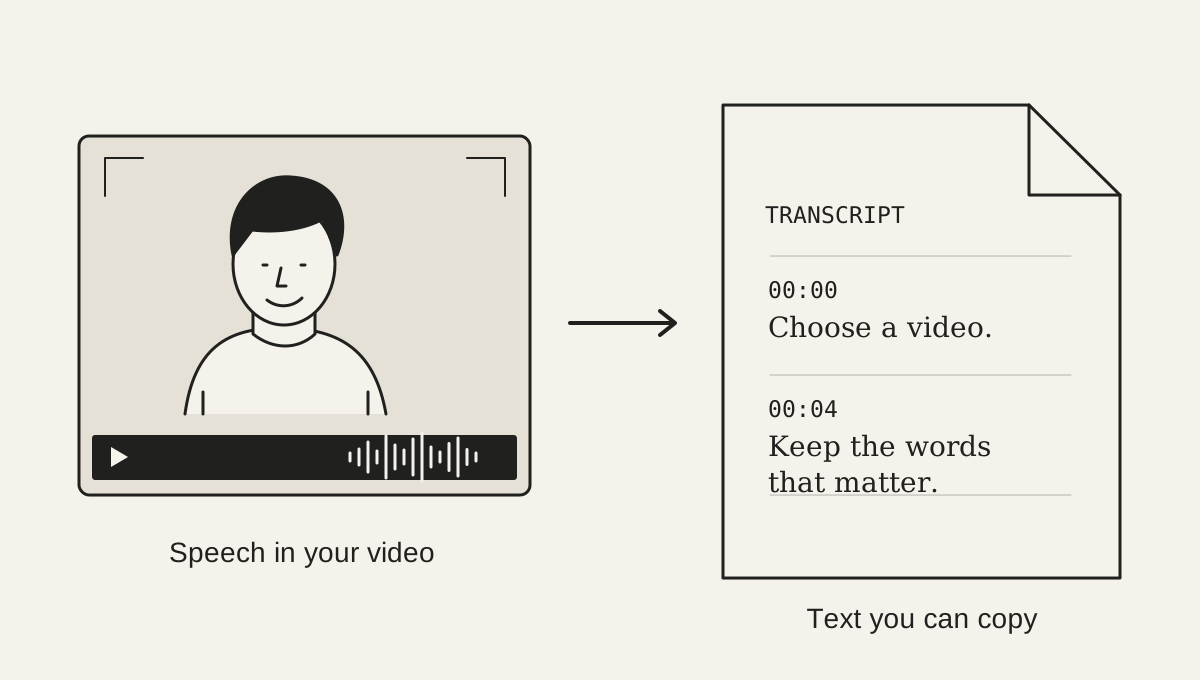
Choose a clip with clear speech
Select a video file such as MP4, MOV, or WebM. The tool accepts clips up to 250 MB and 30 minutes long, but shorter clips usually finish sooner and use less memory. Speech recognition works best when voices are clear and foregrounded. Loud music, overlapping speakers, wind, and room echo can all make a transcript harder to understand.
The browser reads the audio track from the video. If a file has no audio, has a silent track, or uses an audio format this browser cannot decode, choose another export of the clip with a supported audio track.
Select the language that is spoken
Choose the language you hear before starting. The transcription model uses that selection; it does not identify the language automatically or translate speech into another language. If people switch languages during a clip, the result may be less reliable than a clip with one consistent spoken language.
Transcribe, then review the timestamps
Choose a quality on the slider, then press Transcribe video and keep the page open while the audio is prepared and processed. Tiny is the default, with an approximately 41 MB model download on first use. Larger models use more memory and processing time, and may improve the transcript. The video itself stays on your device.
When the transcript is ready, each passage has an approximate timestamp. Select one to seek the video to that moment and check names, numbers, and phrases that matter. Automatic transcription can miss words or punctuation, especially when audio is noisy, so treat the result as a draft to review.
Edit any missed words directly in the transcript. Copy and Markdown both use your corrections.
Copy places the transcript on your clipboard. Markdown saves the transcript text in a small file. The timestamps help you review the video in the page, but the downloaded Markdown contains the text rather than subtitle timing data such as SRT or VTT.
Choose a Whisper model that fits your device
Start with Tiny for a short, clearly recorded voice. If words are consistently missed, try Base or Small on the same passage and compare it with the audio. A larger model is not a guarantee of a correct transcript, and the largest options may be impractical on a phone.
| Model | Download | What to expect |
|---|---|---|
| Tiny | 41 MB | Fastest. Good for clear speech. |
| Base | 77 MB | Better accuracy, still quick. |
| Small | 249 MB | More accurate with accents and noise. Slower. |
| Medium | 776 MB | Higher accuracy. Slow; best on a computer. |
| Large v3 | 1560 MB | Highest accuracy here. Very slow; needs plenty of memory. |
Downloaded models can be reused from the browser cache when space and browser settings allow. Clearing site data or using another browser can require another download. The first run includes that download time as well as transcription, so compare processing speed after the model has loaded.
Turn an interview into usable notes
Review one passage at a time, especially names, dates, prices, and technical terms. Keep the original video nearby when selecting a quotation: a plausible sentence can still contain a missed word that changes its meaning. Markdown gives you a text draft to edit in a notes app or document; it does not identify speakers for you.
For a two-person interview you also want to share as a portrait clip, the horizontal-to-vertical walkthrough explains how to keep both speakers visible with separate crops. Transcribing the clip and reframing it are separate steps, so you can save the notes without changing the video.
Pair the transcript with a visual reference
Use Moodboard to sample frames from the same video into one image. Attach the grid and include the corrected transcript when asking an image-capable AI about the clip's story or visual style. The moodboard guide shows the workflow and a sample prompt.
Optional English cleanup keeps the original
For English transcripts, the optional cleanup can remove filler words and smooth the wording. It downloads a larger model the first time and requires a compatible WebGPU browser. The cleaned version is separate, so you can switch back to the original transcription and compare before copying or saving.
This step is meant to make a transcript easier to read, not to verify facts or preserve every spoken pause. For quotations or important details, check the original audio and use the untouched transcript.
Example · 26-second narrated clip
Hear the clip and read its transcript
This sample tells a short story about a bike ride and an unplanned coffee stop. Captions are available in the player, and the transcript is shown beside it.
Download the sample videoTranscript
We said we'd go for a quick ride. Just twenty minutes. Somehow, that turned into a detour, a coffee stop, and a very serious debate about which pastry to get. No training plan. No personal best. Just two bikes, a sunny street, and absolutely no hurry. Honestly, the hardest part was getting out the door. So if your morning needs a reset, grab a friend and take the long way home. The coffee counts as part of the route.