Turn a two-person interview into a vertical split screen
A landscape interview often puts one person on each side of the picture. Cropping the center for a vertical clip can leave you with a table and two missing faces. A stacked split screen gives each speaker a crop from the same recording, so the question, answer, and reaction can stay visible together.
Open Horizontal to vertical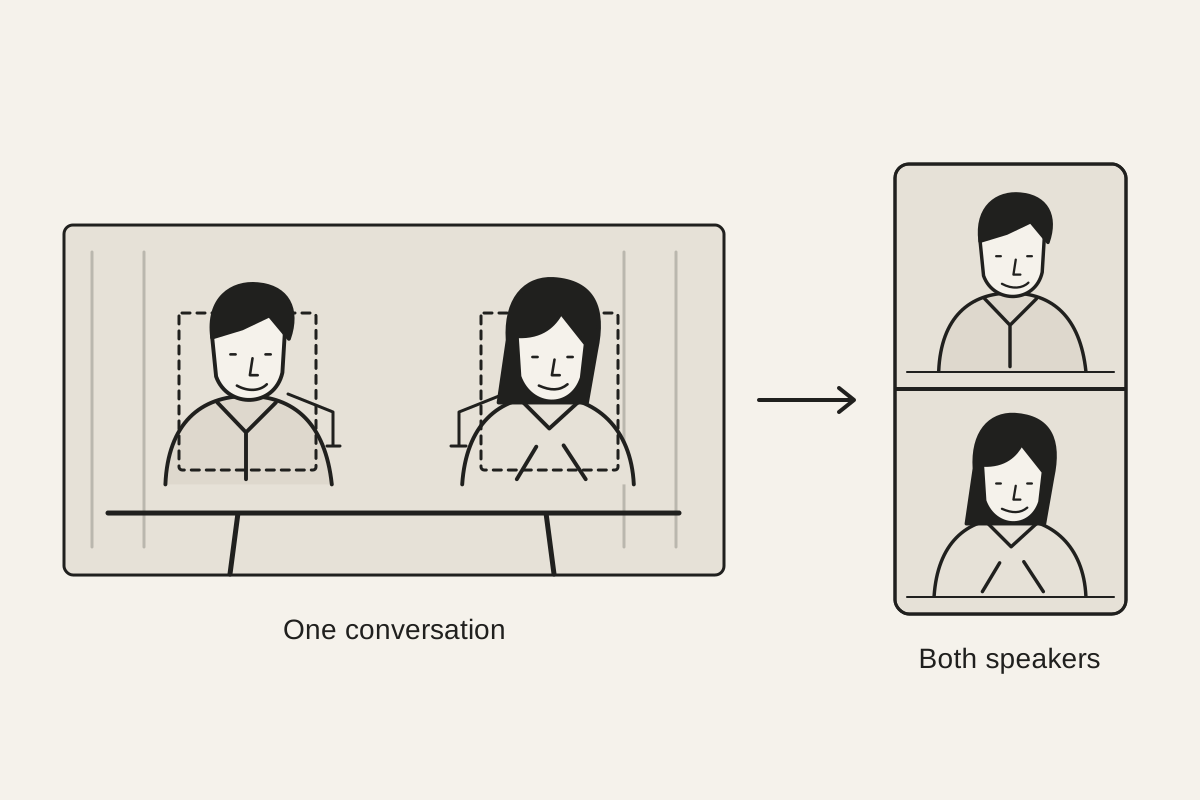
Choose a passage that works on its own
Start with one video containing both people and the audio you want to keep. A fixed camera and seated speakers make this easier: each person stays near the same part of the picture. Separate camera recordings need to be combined in an editor first. This tool reframes one file; it does not synchronize cameras or choose which speaker is talking.
If the interview is long, trim a self-contained passage in your editor before opening it here. Keep enough of the question for the answer to make sense, and avoid ending before a sentence finishes. The converter saves the source's duration and records the export in real time, so starting with the actual passage also avoids exporting an entire conversation for one short post.
Give each person a readable frame
Choose the clip and move one starter crop over each speaker. Check the stacked preview while resizing the boxes. Aim for similar face sizes, a little space above the head, and enough of the shoulders to make the posture readable. You can leave the interviewer above and the guest below throughout the clip; the layout does not switch when someone speaks.
For example, imagine the guest sits farther from the camera. Two equally wide source crops may make the guest much smaller in the finished video. Tighten the guest's crop and compare the faces in the portrait preview. Then play the parts where the guest leans forward. A balanced still frame is useful only if it also holds during the answer.
Leave some room in the direction each person is looking. A nose pressed against the edge can make a conversation feel cramped. Keep meaningful gestures when you can, but prioritize the face and the movement needed to understand the passage. You can select a crop and use arrow keys to nudge it, plus or minus to resize it, and Shift for larger adjustments.
Check the whole passage before saving
The crop positions stay fixed. They do not follow a speaker who stands up, leans far to the side, or walks across the room. Check the opening, the most animated part of the answer, and the end. If a face leaves its crop, widen that crop and check the preview again. If the camera pans between people, this layout may not hold for the entire passage.
Watch for names, captions, and objects near the edges of the original frame. Cropping can remove a lower-third name or half of a sentence already burned into the picture. The converter does not add subtitles or move existing text. If you plan to add captions in another editor, leave clear space for them and preview that final edit at a phone-sized width.
You can transcribe the interview locally to prepare a description or find a quotation. Listen back before using the words: automatic transcription can mishear names and change a sentence's meaning. Its text export is a draft for notes, rather than a timed subtitle file.
Save the portrait video and listen back
Save video creates a 720 × 1280 result, with the two crops stacked and the source audio carried into the export. The file format is MP4 or WebM according to browser support. Keep the tab open and visible while it records. Your recording is processed on this device; it is not uploaded to a conversion service.
Play the saved file from beginning to end with sound. Check that both people remain visible, that the dialogue is present, and that the passage has a clear beginning and ending. If your publishing app cannot read the saved format, convert it in a compatible editor before posting. Framing cannot repair noisy audio or restore detail lost in a small source image.
Try the crop workflow with a sample
The converter walkthrough includes a wide source and playable portrait result. That sample uses two cyclists rather than interview speakers, but shows the same two-crop operation. Download it to try moving and resizing the frames before using your own recording.
For an interview with frequent camera changes, speakers moving out of frame, or several separate recordings, use an editor with timed crop controls or multiple video tracks. A fixed split screen is most useful when both people already share a stable wide shot.